
How to Use ServiceTitan's Dispatch Board to Reduce Drive Time
Every minute your technicians spend driving between jobs is a minute they're not generating revenue. For home service companies, excessive drive time adds up fast: higher fuel costs, fewer completed jobs per day, and technicians who are worn out before they even get to the customer.
The good news? ServiceTitan has several built-in tools that can help you cut down on drive time without paying for any add-ons. Most companies I work with aren't using these features at all, or they're only scratching the surface of what's possible.
Let's walk through the three tools that are already included in your ServiceTitan subscription and how to actually use them.
Use Map 2.0 to See the Big Picture
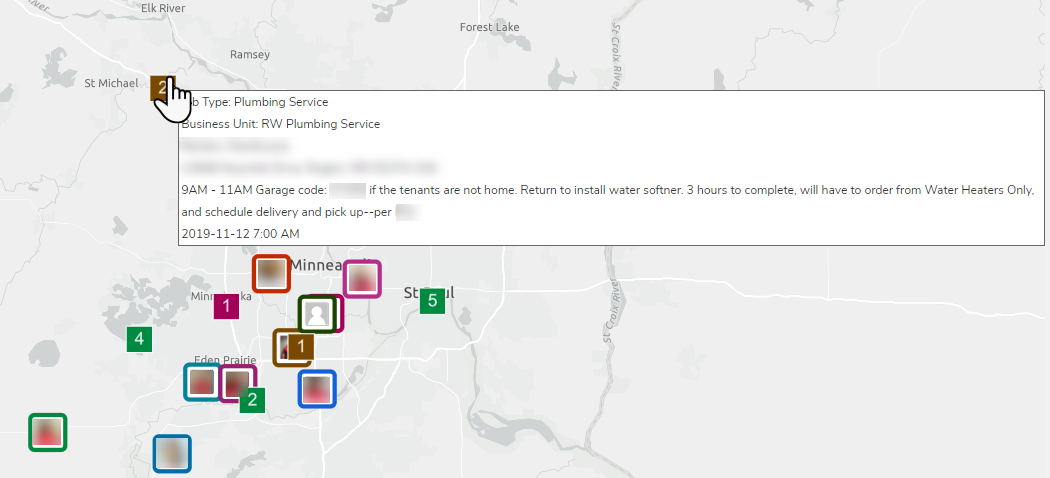
The Map view is one of the most underutilized features on the Dispatch Board. It gives you a visual layout of where all your jobs and technicians are located, color-coded so you can spot inefficiencies at a glance.
To access it, go to your Dispatch Board and click the Daily dropdown, then select Map. The route map opens in a new tab.
Here's what you'll see: each technician has their own color, and their assigned appointments show up as numbered squares in that same color. The numbers indicate the order of their stops throughout the day. If you're seeing a technician's route zigzagging across town when there are closer jobs available, you've found an opportunity.
What to do with this information:
Keep both the Map and your Dispatch Board open (either in two tabs or on two monitors if you have them). When you spot a routing problem on the map, you can quickly reassign jobs on the Dispatch Board.
You can also use the area selection tools to bulk-assign appointments. Click the polygon, rectangle, or circle tool, select a group of unassigned appointments in the same area, right-click, and assign them all to the best-suited technician. This is particularly helpful on busy days when you've got a cluster of jobs in one neighborhood.
For longer-term planning:
Switch to Date Range view to analyze patterns over a week or more. This helps you identify recurring issues. Maybe you notice that every Tuesday, one technician is driving 45 minutes between two areas when another tech lives right in the middle of that route. That's the kind of insight that helps you make smarter scheduling decisions going forward.
One important note: for the Map to work accurately, make sure all your customer addresses and technician home addresses are validated in ServiceTitan. If they're not, the system uses your business unit address as a fallback, which throws off all the route calculations.
Schedule Assistant: Build Efficient Routes While You Book
Schedule Assistant is designed to help your CSRs book jobs more efficiently right from the start. Instead of just grabbing the next available slot, it suggests a date, time, and technician based on who can get there with the least drive time.
When your CSR is booking a call, they click "Schedule Assistant" on the job booking screen. The tool shows up to 52 technician options, sorted by driving efficiency. Each technician card displays how much extra time and mileage would be added to their route if this job were assigned to them.
The calculation it uses is straightforward: it looks at the time from the technician's previous appointment to this new one, plus the time from this new appointment to whatever comes next, and compares that to what the route would look like without this stop. That difference is what shows at the top of each card.
Filters that actually matter:
You can filter by date range, arrival window, specific days of the week, business unit, and individual technicians. The "Only Show Technicians" section lets you narrow results to techs who have the right skills for the job, who have availability, or who work in the same zone as the customer.
If Schedule Assistant returns an error instead of technician options, it means one of your filter criteria couldn't be met. The error message will tell you what to check. Usually it's something like a skill that no available technician has, or a business unit with no techs assigned.
The key requirement:
Schedule Assistant relies on Technician Shifts. If you haven't set up shifts for your technicians, they won't appear in the results. A tech needs an "Available" shift to be considered. If you're not seeing the results you expect, check your shift setup first.
Optimize Technician Route: Reorder the Day in One Click
This feature does exactly what it sounds like. It takes all the scheduled appointments on a technician's board and reorders them to minimize total drive time, using average traffic speeds for the calculations.
To use it, go to your Dispatch Board, click on the technician whose route you want to optimize, and select "Optimize Technician Route" from the dropdown menu. A progress bar shows the optimization running, and when it's done, the appointment bubbles on the board rearrange themselves.
When this works best:
Optimize Technician Route is most effective for technicians running a high volume of jobs with flexible arrival windows. Think pest control, maintenance visits, or any trade running 10+ stops per day with wide arrival windows (4 hours or more). The more flexibility the tool has to move things around, the better results you'll get.
It's less useful if your technicians only run 2-3 jobs per day, or if you're giving tight 2-hour arrival windows. There's just not enough room to optimize in those scenarios.
What won't move:
The tool respects your constraints. Jobs marked as Confirmed stay locked in place. Non-job events with timesheet codes (like training or lunch breaks) also stay put. Only Scheduled jobs get shuffled around.
One thing to watch out for: if a technician has a shared job (one they're working with another tech), optimizing their route could move that shared job and create a conflict for the other technician. This tool works best when each tech is working independently for the whole day.
Setup requirements:
Every technician needs a validated home address in their profile. The optimized route starts and ends at their home, so if that address is missing or wrong, your results will be off. Customer service locations also need to be validated. If none of the jobs have validated addresses, the tool will tell you there's nothing to optimize.
What About Dispatch Pro?
You might be wondering about Dispatch Pro, which you've probably seen mentioned in ServiceTitan. Dispatch Pro is a paid add-on that automates a lot of what we just covered. It uses AI to continuously optimize your dispatch board, predicting job values and technician performance to maximize revenue.
If you're running a larger operation and want to take the manual work out of dispatching, it might be worth evaluating. It has two modes: Assist Mode (where it suggests changes for you to approve) and Auto Mode (where it makes changes automatically). The algorithm factors in predicted job revenue, technician sales history, and drive costs.
But here's the thing: before you pay for automation, make sure you're actually using the free tools well. I've seen plenty of companies buy Dispatch Pro hoping it would fix their dispatch problems, only to discover that the real issues were things like missing technician addresses, incorrect skills setup, or arrival windows that were too tight to optimize around.
Get the basics right first. Use Map 2.0 to spot problems, train your CSRs on Schedule Assistant, and run Optimize Technician Route on your high-volume days. If you're maxing out those tools and still want more, then Dispatch Pro becomes a reasonable conversation.
The Foundation: Clean Data
All of these tools depend on accurate information in ServiceTitan. Before you start optimizing, take some time to verify:
Technician home addresses – Each tech's starting location should be their actual home, not your shop (unless they really do start at the shop).
Customer addresses – Run an address validation check on your service locations. Unvalidated addresses default to your business unit location, which makes route calculations meaningless.
Technician shifts – Set up shifts for every tech so the system knows when they're actually available.
Skills – Make sure job types have the right skills assigned and techs have the matching skills in their profiles. Otherwise, Schedule Assistant will suggest techs who can't actually do the work.
Zones – If you use zones, verify that both jobs and technicians are assigned to the correct ones.
Getting this data cleaned up isn't glamorous work, but it's the difference between tools that actually help and tools that just frustrate everyone.
Putting It Together
Here's a practical way to start using these features if you haven't been:
This week: Open Map 2.0 and just look at yesterday's routes. Don't change anything yet. Just notice where the inefficiencies are. Are there techs driving past each other's jobs? Clusters of unassigned appointments that should have gone to the same person?
Next week: Have your CSRs start using Schedule Assistant for every booking. It adds maybe 30 seconds to the call, but the cumulative time savings on the road add up.
Ongoing: On your busiest days, run Optimize Technician Route in the morning before techs head out. If your dispatchers are manually shuffling appointments anyway, this does the same thing faster.
None of this is complicated, but it does require building the habit. The companies I see getting real results are the ones who make these tools part of their daily workflow, not just something they tried once and forgot about.
Need help setting up your dispatch operations in ServiceTitan? We work with home service companies to audit their current setup and build efficient workflows that actually get used. Contact us to learn more.